Start from a shared list link
In Google Maps, open the exact list you want, choose Share list, and copy its link. Paste the link into PTK’s Google Maps list import tool.
 Places to Keep
IMPORT · KEEP YOUR SAVES
Already have a collection of places in Google Maps? You do not need to rebuild every list manually. PTK can read eligible shared Google Maps list links and let you bring places into your own library.
Try Places to Keep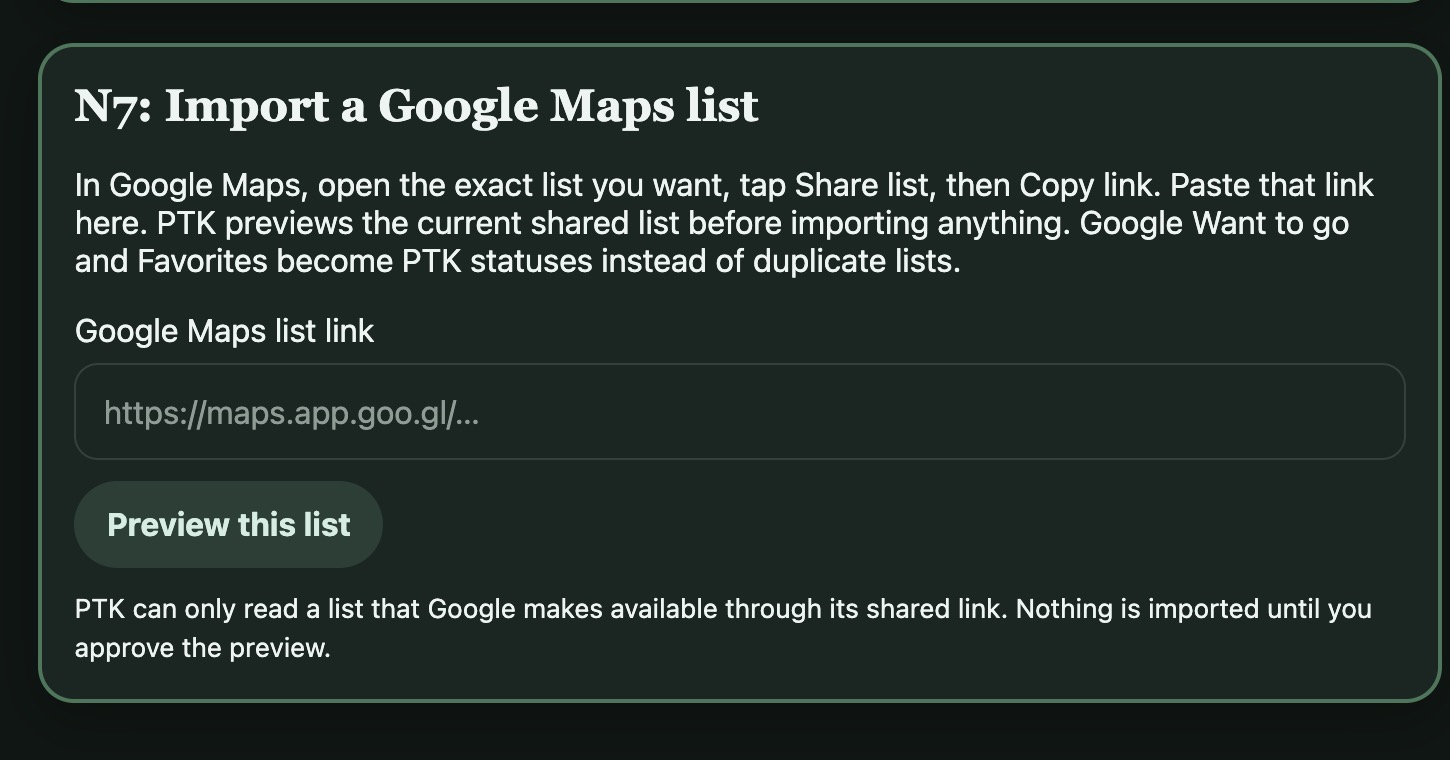
In Google Maps, open the exact list you want, choose Share list, and copy its link. Paste the link into PTK’s Google Maps list import tool.
PTK reads places available through that shared link and presents a preview before you approve. Lists named Want to go or Favorites are handled as corresponding PTK statuses rather than unnecessary duplicate lists.
After import, search, edit and organize the imported places with PTK lists, notes and other features. Existing places are checked to reduce duplicate entries.
REAL-WORLD EXAMPLE
Illustrative import process; a list must be accessible through Google Maps sharing.
Open the Google Maps list and choose Share list, then Copy link
Paste the shared link into PTK and preview the available places
Approve the import, then organize imported entries in your library
PTK can only read lists Google makes accessible through a shared link. This is not a claim that PTK can import every private Google Maps item or every Google Takeout format.
PTK supports eligible shared Google Maps lists. Open the list in Google Maps, copy its sharing link, then preview and approve the import in PTK.
No such automatic import is claimed here. PTK's supported Google Maps list import works through the specific shared list link that Google makes available.
Discover PTK's connected tools for remembering places and making plans.
Open Places to Keep